How to Setup and Manage Multiple Outdoor Solar Cameras in a Single App
To set up and manage multiple outdoor solar security cameras in a single app, pair all units indoors within 5 feet of your 2.4GHz WiFi router before physical mounting. Assign standardized zone names, group cameras by location in the dashboard, adjust individual PIR motion sensitivity per zone, and ensure your home router provides at least 2 Mbps dedicated upload bandwidth per active PTZ stream.
Pre-Installation System Checklist
- Unbox all solar camera units and locate individual QR codes.
- Fully charge each camera unit using the included USB cable prior to mounting.
- Verify your smartphone is connected to a dedicated 2.4GHz WiFi network channel.
- Download and register your account in the official camera management app.
- Ensure home router upload speed meets the minimum 2 Mbps requirement per camera.
Step-by-Step Multi-Camera Pairing & Configuration Workflow
Photo by Chris Thornton on Pexels
Managing four, six, or eight solar security cameras from one mobile app does not have to feel overwhelming. Following this standardized workflow ensures reliable wireless sync, seamless live viewing, and instant pan-tilt-zoom control across your entire property.
Step 1: Execute Indoor Pre-Pairing Near Your WiFi Router
Never mount a solar camera outdoors before syncing it with your phone. Bring all solar camera bodies indoors and place them within 5 feet of your wireless router. Power on the first unit, launch your app, select Add Device, and scan the QR code located on the camera housing. Input your home 2.4GHz WiFi password when prompted. Repeat this exact process for each camera sequentially.Step 2: Establish Standardized Property Naming Conventions
Generic camera names like Camera 1 or Cam_8932 lead to dangerous delays during property alerts. Rename each camera immediately after pairing using a clear, location-first taxonomy:- Driveway PTZ — North Gate
- Backyard PTZ — Patio Pool
- Front Porch — Main Entryway
- Side Alley — East Fence
Step 3: Group Cameras into App Property Zones
If your setup includes four or more outdoor cameras, organize them into visual folder groups within the app settings. Create primary zones such as Front Property, Perimeter & Gates, or Outbuildings. Grouping prevents endless scrolling on the primary multi-view dashboard and allows you to check specific areas of interest with a single tap.Step 4: Fine-Tune Zone-Specific PIR Motion Sensitivity
Not all areas of your property require the same detection threshold. Access each camera's device menu in the app: High-Traffic Zones (Driveway/Street Facing): Set PIR motion detection to Low or Medium sensitivity, and enable Human Body Detection Only* to prevent moving foliage or passing cars from triggering notifications.- Low-Traffic Perimeter Zones (Backyard/Side Alley): Set motion sensitivity to High with immediate push notification alerts.
Step 5: Perform an Exterior Field-Strength Signal Audit
Before securing mounting brackets to wall studs, take the paired camera and your mobile device to the intended outdoor installation site. Open the app's live feed and verify that the signal indicator reads at least 70% strength (or -65 dBm). Check that the Pan-Tilt-Zoom functions respond smoothly without severe video lag.Step 6: Configure Storage and Cloud Backups
Decide how each camera in your ecosystem stores event footage. Insert high-endurance micro-SD cards (up to 128GB) into each camera for continuous local event logging, and activate cloud storage services inside the app for secondary off-site video backup in case a unit is physically damaged by intruders.Calculate Your Multi-Camera Bandwidth Requirements
Use this theoretical network calculation framework to determine whether your current ISP upload speed can support simultaneous multi-camera app streams.
Recommended Solution: Comprehensive Multi-Camera Security
If you are expanding outdoor surveillance across residential or commercial grounds, managing uniform hardware within a unified app interface eliminates compatibility headaches. The Outdoor Solar Security Camera (Pack) is specifically engineered for multi-device synchronization within a single mobile dashboard.
- Complete Property Coverage: Full Pan-Tilt-Zoom (PTZ) control gives you 355° horizontal panning and 90° vertical tilting across every outdoor zone.
- Clear Night Defense: Switch between infrared stealth mode and full Color Night Vision directly inside the app control panel.
- Zero Wiring Required: High-efficiency solar panels maintain continuous power reserve, eliminating battery swap downtime.
- Unified Control: Control pan speeds, custom alert schedules, two-way voice intercom, and dual micro-SD/cloud storage options for all cameras under one master mobile app.
Multi-Camera App Sync & Connectivity Troubleshooting
| Symptom | Probable Root Cause | Immediate Resolution in App / Hardware |
| --- | --- | --- |
| Camera drops offline intermittently in the app | Weak 2.4GHz WiFi RSSI (-75 dBm or lower) at mounting point | Relocate WiFi router closer to exterior wall, install a 2.4GHz outdoor signal extender, or lower stream quality to SD in app settings. |
| Live feed buffers endlessly when opening multi-view | Router upload bandwidth exhausted by simultaneous video streams | Change default multi-camera preview mode from HD to SD sub-stream; set live view grid to load 2 cameras at a time instead of 4. |
| No push notifications received when motion occurs | PIR sensor set to low sensitivity, or smartphone OS background permissions disabled | Navigate to App Notifications setting, enable 'Allow Background Data Push', increase PIR sensitivity to Medium, and verify Arming Schedule is active. |
| PTZ controls lag by several seconds during remote pan | High network latency or smartphone connected to weak cellular data | Ensure phone is connected to 5G/LTE with high speed, clear app cache inside application settings, and update camera firmware to latest version. |
| Night vision image appears pitch black in app feed | Color Night Vision spotlights turned off or battery level below 15% charge threshold | Check battery status in app power menu; if charge drops below threshold, solar camera auto-disables white spotlights to conserve core security tracking. |
When managing multiple outdoor wireless cameras, connection anomalies can occur due to signal attenuation, network congestion, or power states. Use this side-by-side diagnostic table to resolve system issues fast.
Key System Management Takeaways
Keep these core security administration rules in mind to maintain an efficient multi-camera solar setup:
Recommended Multi-Pack Solar Surveillance Gear
Select the appropriate multi-unit solar hardware designed natively for single-app management.
System Architecture: Single-App Multi-Camera Dashboard Blueprint
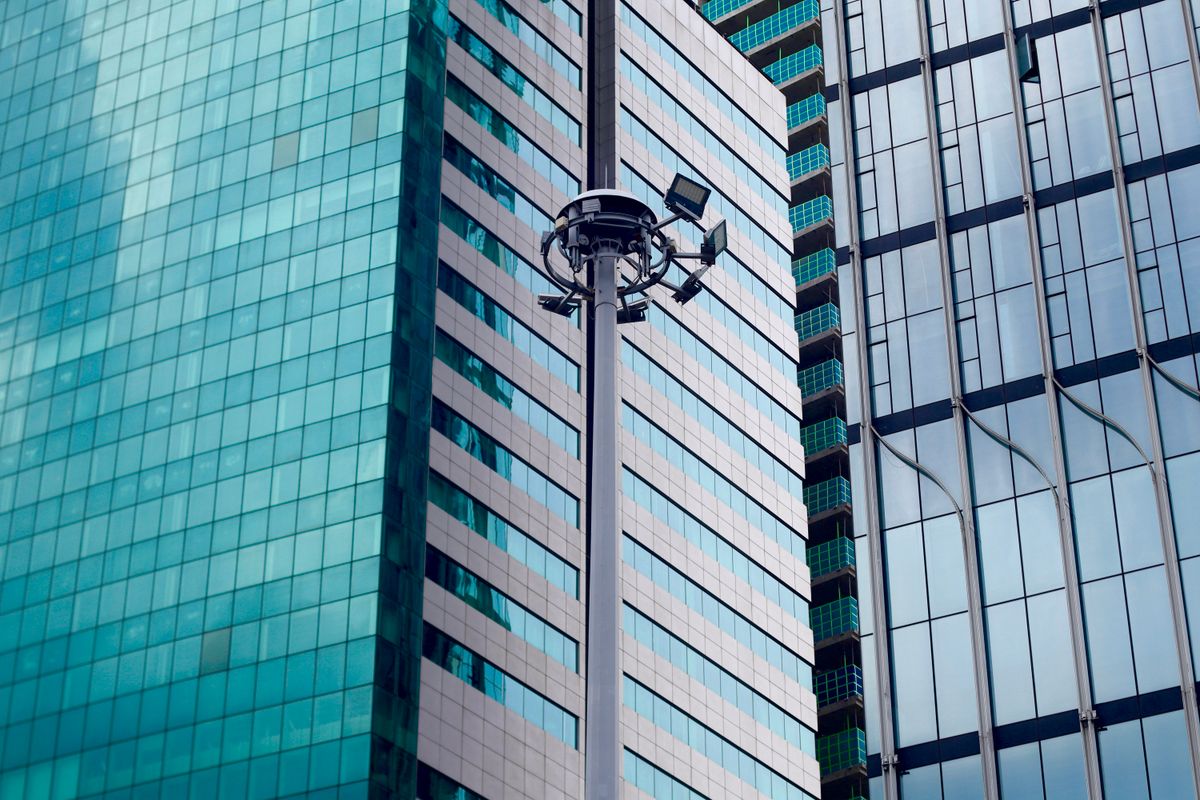
This visual architecture blueprint details how to layout your multi-camera dashboard and structure security permissions across home networks.
5 Common Multi-Camera Setup Mistakes to Avoid
Avoid these frequent mistakes when pairing and managing multiple outdoor solar cameras within a single smartphone app:
Multi-Camera Setup Timeline & Network Stabilization Window
- Minute 0 – 15 — Unbox all solar cameras, connect each unit to AC USB wall chargers, and download the camera app onto your smartphone.
- Minute 15 – 30 — Connect smartphone to 2.4GHz WiFi, execute indoor QR code pairing for all units near the router, and assign custom zone names.
- Minute 30 – 45 — Conduct outdoor signal walk-tests at target installation spots. Verify app signal strength indicators read above 70%.
- Hour 1 – 2 — Physically mount brackets, adjust solar panels toward maximum unshaded south exposure, and calibrate PTZ default home positions.
- Hour 24 – 48 — Monitor app battery level reports, adjust PIR sensitivity rules to eliminate false triggers, and finalize cloud storage recording schedules.
Frequently Asked Questions
Find answers to essential questions regarding multi-camera app management, user sharing, and network bandwidth optimization.
Your Next Steps for Full System Optimization
Your decision: Determine whether your home WiFi network supports simultaneous multi-camera streaming and select your camera naming taxonomy.
Do this next: Gather all solar cameras, bring them within 5 feet of your router, fully charge their batteries via USB, and complete app pairing before outdoor installation.
- Read next: How to Custom-Configure Solar Camera Motion Detection Alerts to Stop False Alarms
- Read next: Solar Security Camera Placement FAQ: Eliminating Property Blind Spots
Expand your system with our Outdoor Solar Security Camera (Pack) for complete PTZ property coverage on a single app dashboard.
You now have the exact framework to establish, organize, and control multiple outdoor solar security cameras from a single app interface.