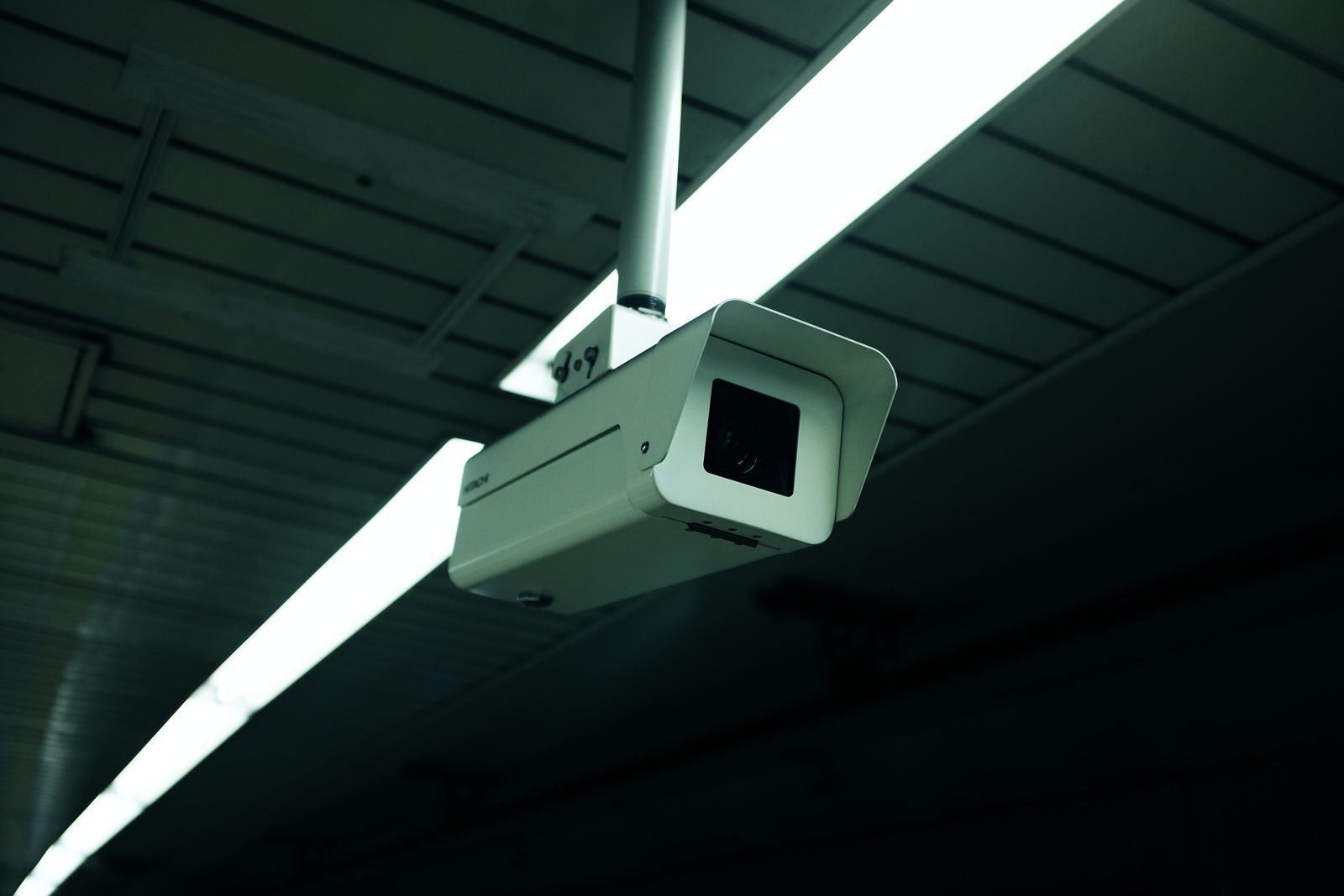
Troubleshooting Outdoor Solar Camera Dropouts: How to Fix Weak WiFi Signals
When an outdoor camera keeps disconnecting from WiFi, the cause is almost always one of four things: marginal signal at the mount point, a crowded or shifting WiFi channel, a router setting that keeps evicting the camera, or a battery that is dropping too low to hold the radio on. Work through them in that order, because the first two account for the majority of cases and cost nothing to test.
A dropout is not the same as a failure. A camera that reconnects on its own within a minute is telling you the link is marginal. A camera that goes offline and stays offline until it is power cycled is usually telling you something about power or pairing.
First, identify which kind of dropout you have
Match the pattern to the cause before changing settings, because the wrong fix wastes an afternoon.
| Symptom | Most likely cause | First thing to check | |---|---|---| | Live view stutters but the camera stays online | Bandwidth, not coverage | Upload speed and how many devices share it | | Camera drops daily at roughly the same time | Router scheduled reboot, or a neighbor's device | Router reboot schedule and channel | | Camera drops only after dark | Power, not network | Charge level and recent sun exposure | | Camera drops when it pans or zooms | Marginal signal at part of its arc, or voltage sag | Signal strength at the mount point | | Camera never reconnects without a manual reset | Pairing or DHCP lease conflict | Router device list for duplicate entries | | All cameras drop together | Router or internet service | Whether other devices dropped too | | Drops began after new gear arrived | Channel interference | Nearby routers and 2.4 GHz devices |
Fix the signal at the mount point, not in the yard
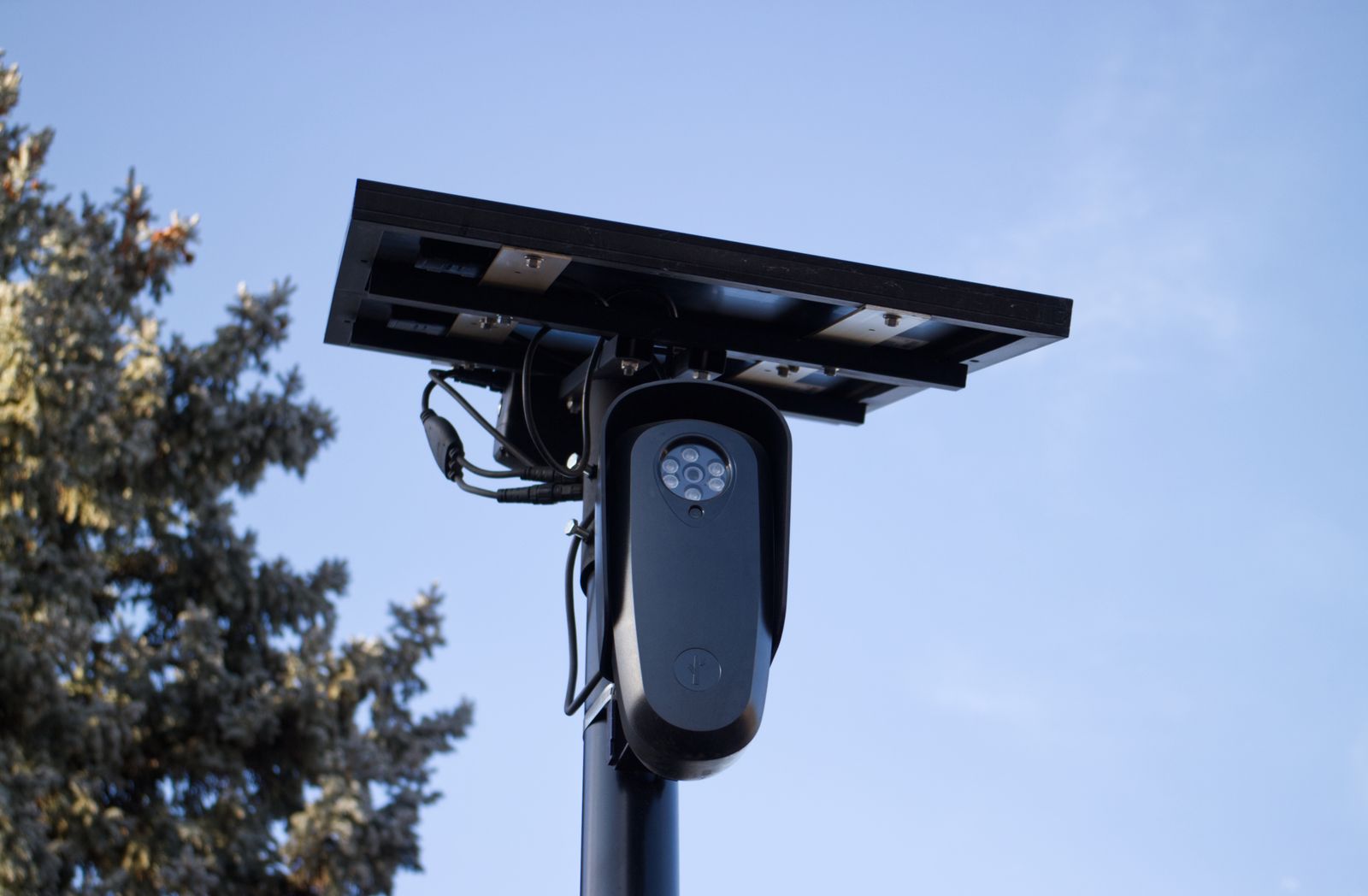
Photo by Will Freeman on Pexels
Signal strength must be measured where the camera actually sits, at its real height and orientation. A reading taken while standing below the camera can be misleading, because the wall, the eave, and any metal flashing between the camera and the router all change the result.
Practical checks that resolve most coverage-driven dropouts:
If the property has more than one weak spot, adding hops one at a time tends to disappoint. Our comparison of extenders and coordinated networks in the performance notes for a wireless solar camera system explains why a single shared hop degrades as cameras are added.
Why a crowded 2.4 GHz band causes intermittent dropouts
Outdoor cameras generally connect on 2.4 GHz because it reaches farther through walls. The tradeoff is that 2.4 GHz is the busiest band in most neighborhoods, shared with older routers, wireless doorbells, baby monitors, some smart plugs, and microwave ovens.
Interference produces exactly the symptom people report as random: long stretches of stability broken by sudden dropouts at unpredictable times.
- Only channels 1, 6, and 11 do not overlap. Anything else overlaps two neighbors at once.
- Many routers pick a channel at boot and never revisit the decision, so a channel that was clear last year may be crowded now.
- Setting the 2.4 GHz channel manually to whichever of 1, 6, or 11 is least used nearby is usually the single highest-value change.
- Narrowing the 2.4 GHz channel width to 20 MHz reduces overlap and improves stability, at the cost of peak throughput the camera does not need.
Router settings that quietly evict cameras
Several common router features are helpful for laptops and actively harmful for cameras.
- Band steering can push a camera onto 5 GHz, which it may not support or may not reach. If pairing fails or drops repeatedly, separate the band names temporarily.
- Short DHCP lease times force frequent renewals. Assigning the camera a fixed address in the router removes a whole class of reconnection failures.
- Airtime fairness and client isolation can restrict device-to-device traffic that some app features rely on. Isolation should be off for the network the camera lives on.
- Guest networks often block the discovery traffic used during pairing. Put the camera on the main network.
- Scheduled router reboots at a fixed hour explain any dropout that arrives on a schedule.
- Device limits on older routers matter more than people expect. A household with dozens of connected devices can exceed what an older router tracks comfortably.
When it is power, not WiFi
A solar camera with a low battery will often keep its basic functions alive while shedding the most power-hungry ones, and the radio is among the most power-hungry. That produces a camera that appears to have a network problem but actually has an energy problem.
Signs the real issue is charging rather than signal:
- Dropouts cluster in the evening or overnight and clear up by midday.
- The problem started after a stretch of overcast days or after nearby foliage filled in.
- The camera works normally for a day after being brought inside and charged, then relapses.
- Cold weather made it worse, since battery chemistry delivers less usable capacity at low temperatures.
A repeatable troubleshooting order
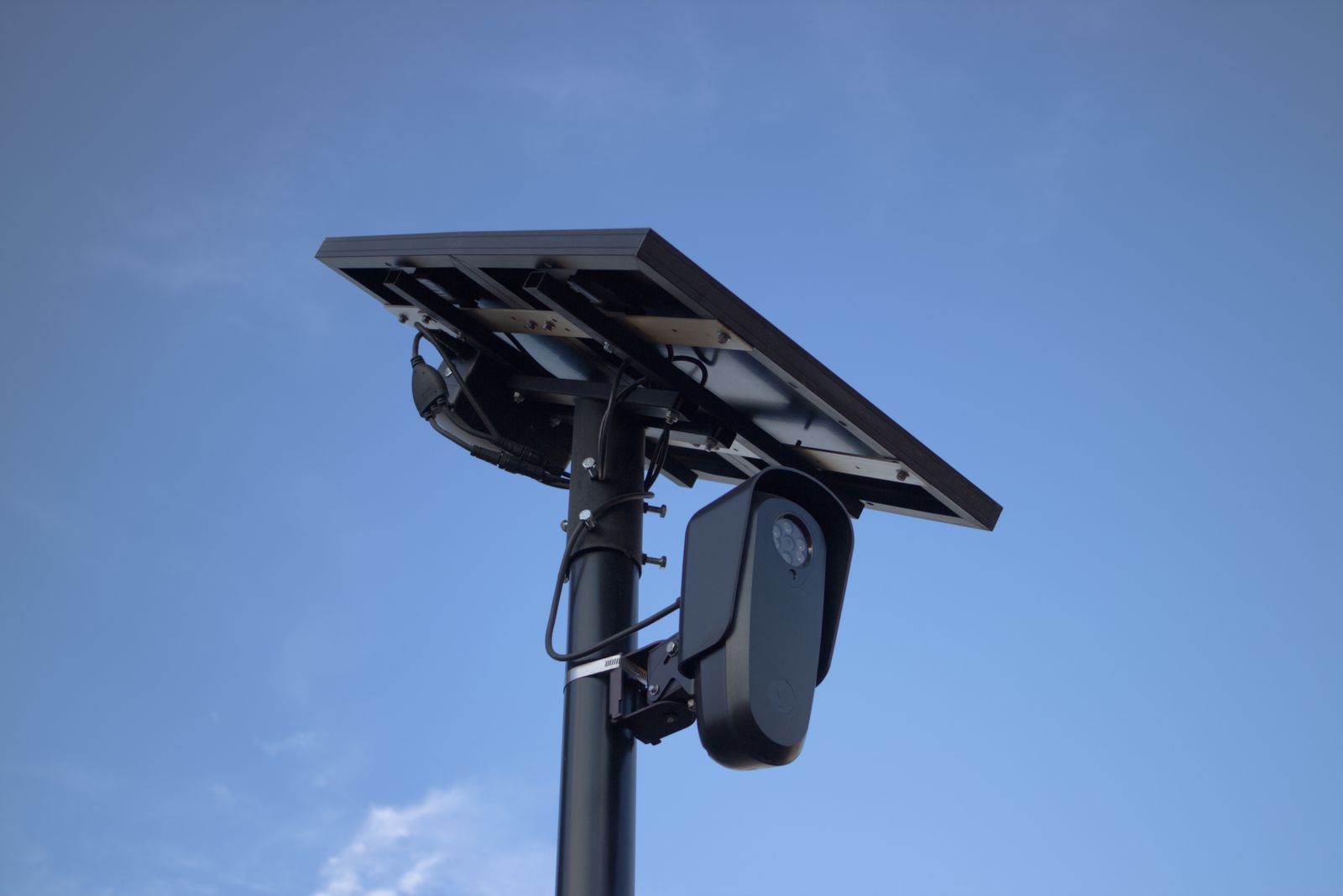
Photo by Will Freeman on Pexels
Follow this sequence rather than changing several things at once, so you learn which change fixed it.
Placement and recording rules worth confirming
While repositioning a camera or a network node to chase signal, it is easy to change what the camera can see. Laws covering audio recording and the filming of areas outside your own property vary by state, city, and country, so confirm the local rules before settling on a new angle or turning on audio capture. Keep the field of view on your own entrances, driveway, and structures, and never aim or use a camera to record inside a neighbor's home or private enclosed space.
FAQ
Does moving the camera closer to the router always help? Not always, and it can make things worse if the new position gives the panel less sun or gives the lens a poor angle. Try to fix the network path first, since a node or repositioned router usually costs less coverage than relocating the camera.
Why does the camera drop only when it pans? Two reasons are common. The signal may be usable at one part of the arc and marginal at another, particularly when the body rotates its antenna away from the house. Motors also draw meaningful power, so a camera with a low battery can brown out its radio mid-movement.
Should the camera be on 2.4 GHz or 5 GHz? Use 2.4 GHz for anything mounted outdoors. It travels farther and passes through walls and siding much better. Reserve 5 GHz for devices that sit close to the router and need throughput.
How do I stop the app from constantly showing the camera offline? Give the camera a reserved address, turn off band steering, and confirm the camera is on the main network rather than a guest network. If the app still shows intermittent offline states while recordings continue to arrive, the app is reporting a brief renewal gap rather than a real outage. Keeping backups in the cloud protects footage through those gaps, as covered in our cloud storage guide.
Next step
Start with the two free diagnostics: check whether other devices dropped at the same moment, and check the charge level. Those two answers route you either to the router settings or to the panel and its sun exposure, and they prevent the common mistake of buying networking hardware for what turns out to be a shading problem.
Cover photo by Alex Knight on Pexels.